Multi-Discipline Supports
User Guide
Using the MDS Application : Modify a Support
The user can now modify the support using the various options available on the MDS XFT09 support window (Figure 2:1.: XFT09 - MDS framework window). A description of each option, along with its associated icon, is shown in the following table. The access to each icon is dependent on the configuration being used. Icons for unavailable options are greyed out.
 |
Add pipe adds a pipe to a framework support. The user must identify the tube of the pipe to add by graphical pick.
|
 |
Add HVAC adds a duct of HVAC to a framework support. The user must identify the duct of HVAC to add by graphical pick.
|
 |
Add rack adds a cable rack to a framework support. The user must identify the rack to add by graphical pick.
|
 |
Add cross bar adds a cross bar to a framework support. The user must identify by graphical pick one or more support attachments the user wants to support with additional cross bars.
|
 |
Mirror framework mirrors the support, perpendicular to the datum attachment, repositioning the framework members through the structure origin.
|
 |
Align support picks two points with the EDG (Event Driven Graphics) application. It then calculates the distance between the two points, using the datum attas leave direction. This allows the user to position the support more accurately.
|
 |
Modify support section modifies a section belonging to the support with the standard modify section start/end window. If a section is modified using this facility, any future regeneration of the support will not include these modifications and returns to the default configuration.
|
 |
Add packer adds packing pieces to support attas that are not sitting directly on the steelwork.
|
 |
Delete packer deletes packing pieces already added to the support framework.
|
 |
Rotate all attas can be used when the support type is used with vertical pipes. It rotates all the attachments by the angle entered into the text field next to the icon.
|
 |
Rotate atta rotates individual attas. It rotates the attachment by the angle entered into the text field next to the icon.
|
 |
Modify datum atta modifies the datum atta from one atta to another.
|
 |
Bedplate reference associates a support steelwork member with a bedplate. This information is then added to the subsequent drawing, which can be created with the MDS Automatic Drawing Production application.
|
 |
Associate atta associates an attachment with a crossbar. It allows the user to associate an attachment at any time.
|
 |
View associations shows the support attachments that are associated with each crossbar. This can be very useful if the support Integrity Checker identifies a large packing distance between the support attachment and the associated crossbar. Often the reason for this is that the attachment is associated with the wrong crossbar.
|
 |
Delete atta deletes an attachment from the support framework. The datum attachment cannot be deleted from the support.
|
 |
Nudge nudges the support with the flow or against the flow, depending on which icon is pressed, by the distance value entered in the text field next to the icons.
|
 |
Spooling creates spools for the steelwork erection procedure. The MDS ADP drawing displays which spool the steelwork section belongs to in the material list.
|
 |
Set materials of the steelwork sections.
|
 |
Copy like identifies another support of the same standard and copies its dimensions. The number of associated pipes, cable trays, and HVAC elements do not have to be the same on each support.
|
 |
View standard displays the standards associated plot file.
|
 |
Create connections section to existing main steel.
|
 |
Modify connection to existing steel.
|
 |
Force-connect to existing main steel.
|
 |
Disconnect template sections from existing main steel.
|
 |
Show/hide framework dimensions graphically displays the dimension of the support standard.
|
 |
Centre on support refreshes the graphical view with the support being created or modified in the centre. The view scale is not modified.
|
 |
ADP Drawlist control can be modified from the MODEL General Application. The support steelwork and all its associated members are added by default. The user may add extra elements to the Drawlist up to a maximum of ten. Use this to add steelwork that does not belong to the support framework.
|
 |
Specify a location position for ADP dimensions.
|
 |
Identifies a trimmer requirement (by others).
|
 |
Ancillary material setting.
|
 |
|
 |
|
 |
Add a note to the ancillary to appear on the drawing deliverable.
|
 |
Data allows the user to store load data against an ancillary.
|
 |
Modify atta modifies the ancillary type or the user editable design dimensions of the support attachment.
|
 |
Flip ADP view directions flips the ADP view directions 180° from the MODEL General Application, for drawing clarity.
|
 |
Convert to special converts the existing support to a special support.
|
 |
Isometric control allows the user to control the isometric drawing representation and material list for individual ancillaries/support framework.
|
 |
Create weld lets the user view, create, modify, or delete welding information.
|
 |
Repeat atta copies a support attachment onto another pipe. The user must first identify the attachment to be repeated, then the pipe(s) to repeat the attachment on by graphical pick
|
 |
Rotate frame rotates the framework about the datum attachment.
|
 |
Flip field weld is used when a support type can be built with the field weld at either end of the framework steelwork member. It will place the field weld at the other end of the steel and depict it with a textural aid.
|
 |
Identify steel for calculation of trunnion lengths.
|
 |
|
 |
Flip atta flips an attachment within the line; this can be used to flip non-symmetrical attachments.
|
 |
Reconnect reconnects a hanger to another beam.
|
 |
Trim SCTN trims or extends identified section ends to a surface.
|
To modify a support, on the Supports tab, in the Modify group, click Support to display the Modify Support window.
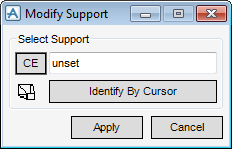
Identify the support the user requires to modify by entering a name into the Support Name text field, clicking CE to modify the current element if it is a support or clicking Identify By Cursor.
Click Apply. The same window as used to generate the support is displayed with all the dimensions correctly filled in. Modification follows the same principles as support creation.
|
1.
|
Click Cancel while in modification mode.
|
