Multi-Discipline Supports
User Guide
Using the MDS Application : Create and Manipulate Connections to External Steelwork
 . This creates a connection only if the application knows the identity of the steelwork to connect to.
If the user used the Create by Cursor or Create by Clearance methods the connection to the external steelwork is made automatically.
Refer to the MDS Administrator Guide for more details.
 . The user is presented with a window that displays all the available joints.
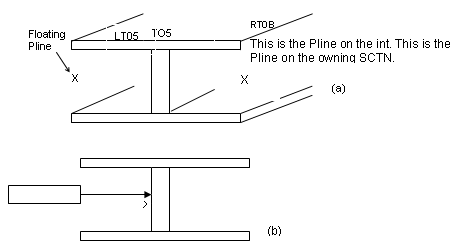
If the user has identified the external steelwork to connect to with either Create by Cursor or Create by Clearance, it is possible that the application will connect to the wrong Pline. This can happen in the case of the SCTN having floating Plines (X) ((a) in Figure 2:11.: Forced connection to SCTN with floating Plines).
|
Figure 2:11.
|
The user can force-connect the joint to a specific Pline ((b) in Figure 2:11.: Forced connection to SCTN with floating Plines) by selecting the Force Connect icon  . the user is prompted to identify the required Pline using the cursor.
. the user is prompted to identify the required Pline using the cursor.