DRAW Administrator Guide
Line Styles Manager
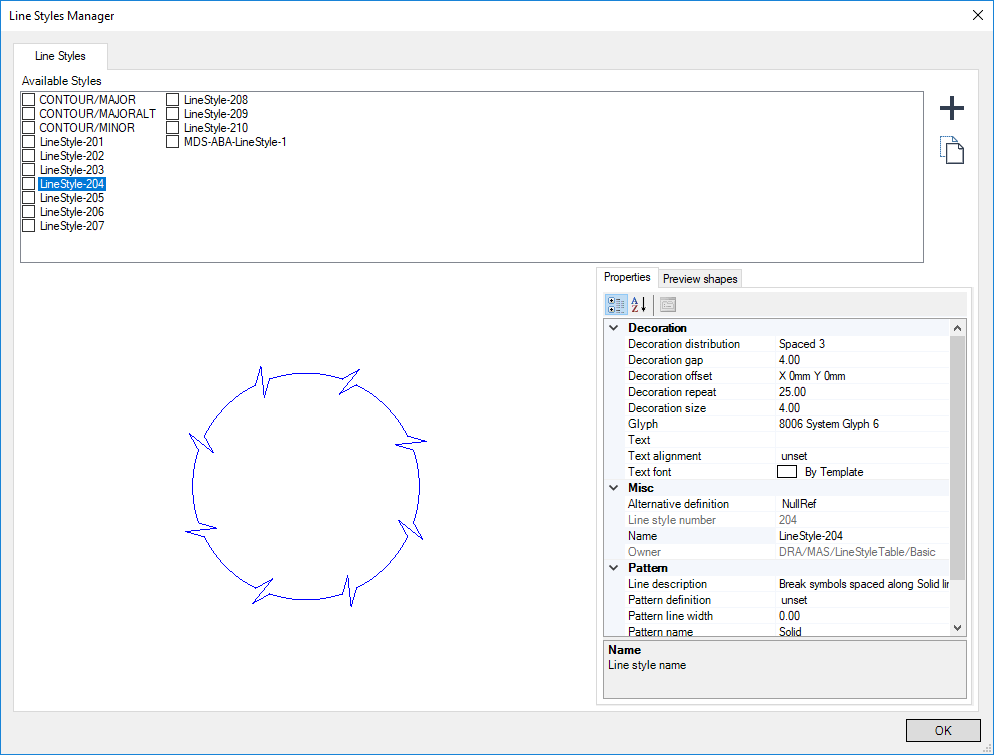
The existing user-defined line styles display in the Available Styles list.
 |
||
 |
Allows you to copy an existing visual style. Refer to Copy Line Style for further information.
|
Select the check box adjacent to the required style in the Available Styles list.
Select a line style in the Available Styles list.
Use the Properties tab to modify the line style properties. Refer to Properties for further information.
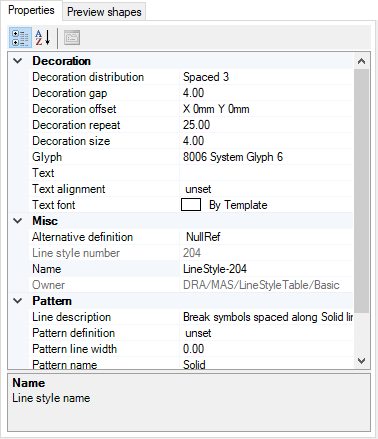
|
Specifies the placement rules for the Glyph and Text across the line. The default value is Spaced 3.
|
|
|
Specifies the line style name. The value is populated from the line style name in the Available Styles list.
|
|
Use the Preview shapes tab to view the line style as various different shapes using the currently defined properties.
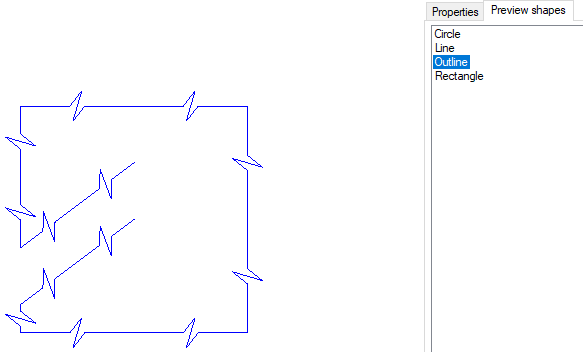
|
Note:
|
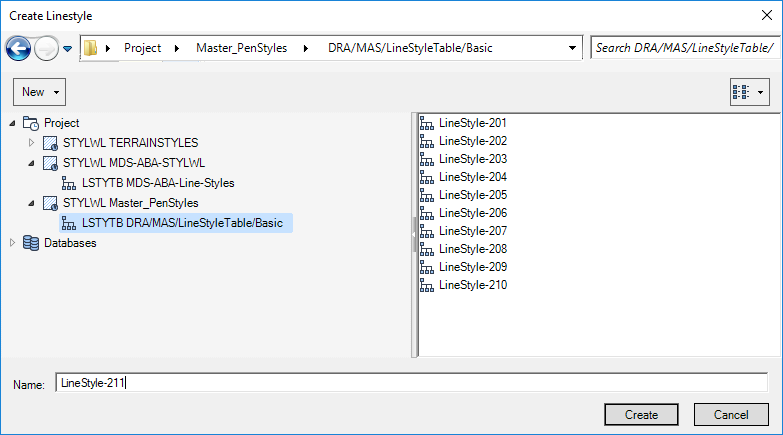
The Create Linestyle window is similar to the Hierarchy Browser window. Refer to Hierarchy Browser for further information.
|
Browse the hierarchy to select the library element that the new style is to be created under. Input a name in the Name field, or leave it blank if the style is to be assigned a name automatically.
To open a drop-down menu consisting of elements that can be created at the current level, click New above the left-hand part of the window.
Click Create to create the new style. The new style is then created and added to the Available Styles list in the Line Styles Manager window.
Browse the hierarchy to select the library element that the new style is to be created under. Input a name in the Name field, or leave it blank if the style is to be assigned a name automatically.
Click Create to create the new style. The copy of the selected style is then created and added to the Available Styles list in the Line Styles Manager window.
