Multi-Discipline Supports
User Guide
Hangers : Select a Creation Mode
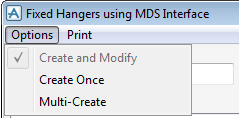
The Hangers window (Figure 5:2.: Hanger Creation options) offers three modes to create hangers.
|
Figure 5:2.
|
|
1.
|
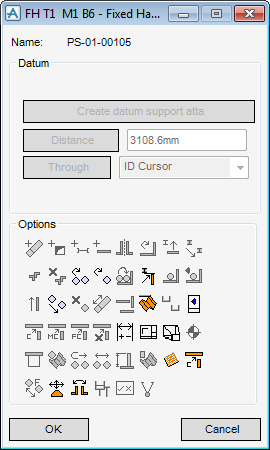
Enter the hanger name in the Name input field. The application displays the hanger window (Figure 5:3.: Hanger window).
|
|
2.
|
Click OK. The application creates the hanger and activates the ALL button of the hanger configurations window:
|
|
5.
|
Click OK. The application creates the hanger and prompts the user to select a new pipe and beam(s) for the next hanger. The hangers are named automatically using the naming convention set by the MDS administrator.
|
2.
|
|
Figure 5:3.
|
If the selected beam intersects with the pipe, then the hanger is positioned at the intersection point. In this case Distance and Through become deactivated as the hanger cannot be moved while it is connected to the beam.
 .
.If a valid connection point is found, then the application creates the hanger. In this case Distance and Through become activated, allowing the user to modify the position of the hanger. Moving the hanger with these buttons also moves the steelwork connection point(s) and associated fitting(s) accordingly.
